


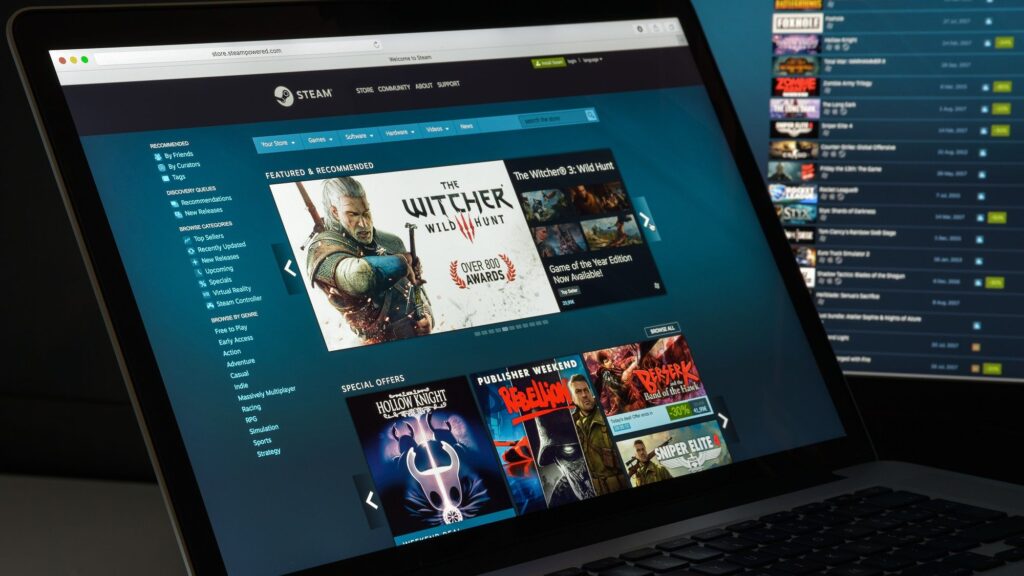
Getting your favorite PC games on a Mac might seem challenging, but with Steam, it’s easier than ever. Whether you’re a seasoned gamer or just starting out, installing Steam opens the door to thousands of titles tailored for Mac or compatible with it. This guide walks you through the step-by-step process of downloading, installing, and setting up Steam on your Mac, ensuring you can enjoy gaming on your Apple device seamlessly. Plus, you’ll learn how to find Mac-specific games and optimize your setup for the best experience.
—
How to install Steam on Mac
1. Open Your Web Browser and Visit the Official Steam Website
Start by launching your preferred web browser on your Mac. Navigate to the official Steam store at store.steampowered.com. Once there, locate and click the Install Steam button in the top right corner of the webpage. This will direct you to the download page for the Steam application.
2. Download the Steam Installer
On the download page, you’ll see a blue button labeled Install Steam, often accompanied by an Apple logo. Click this button to begin downloading the installer. If you don’t see the Apple logo, look for the Apple icon beneath it and click to confirm your download is for Mac.
3. Access and Run the Downloaded File
Once the installer has downloaded, check your Downloads folder or click the download icon in your browser (for Safari, it appears in the top right corner). Locate the file named steam.dmg and double-click it to open. This action mounts the installer disk image on your desktop.
4. Install Steam by Dragging the Application
A window will appear showing the Steam icon. Drag this icon into your Applications folder to complete the installation process. This method ensures Steam is correctly installed and ready to run from your Applications.
5. Launch Steam and Log In or Create an Account
Open your Applications folder and double-click the Steam app to launch it. If you already have a Steam account, enter your login credentials. For new users, click Create a New Account and follow the on-screen instructions to set up your profile. Steam may prompt you to install Rosetta if you’re using an Apple Silicon Mac, which allows Intel-based applications to run smoothly.
6. Find and Play Mac-Compatible Games
After logging in, you can browse the Steam store for games. To discover titles optimized for macOS, click the Search icon and then filter your results by selecting macOS under the Narrow by OS options. Each game’s description will indicate if it’s compatible with Mac, and you can easily install and launch these titles.
—
Ensuring Compatibility and Optimizing Your Gaming Experience
Steam supports a wide range of Mac-compatible games, but some titles are designed specifically for Intel chips. If you’re using an Apple Silicon Mac, knowing how to install Rosetta will help you run these games efficiently. To do this, locate the Steam app in your Applications folder, right-click it, select Get Info, and check the box next to Open using Rosetta.
For more advanced setup tips or troubleshooting, consider exploring resources like game development career guides to enhance your development skills or learn about mobile game app creation for expanding your gaming projects.
Once you’ve set up Steam and started browsing, don’t forget to explore the best free titles on the platform, or if you’re a PC user, learn how to install Steam on Windows for broader access. If you own a Steam Deck, discovering how to optimize its performance can further elevate your gaming experience.
—
Final Tips and Additional Resources
Having Steam installed on your Mac gives you access to a vast library of games and the ability to keep your software up to date effortlessly. Always ensure your macOS is current to support the latest Steam features and titles. For gamers interested in expanding their team or learning more about the game development process, checking out guides like how to get a hardware engineer for your game can be invaluable.
Start exploring the world of gaming on Mac today and enjoy countless hours of entertainment by following these simple installation steps. Your journey into gaming excellence begins here!