


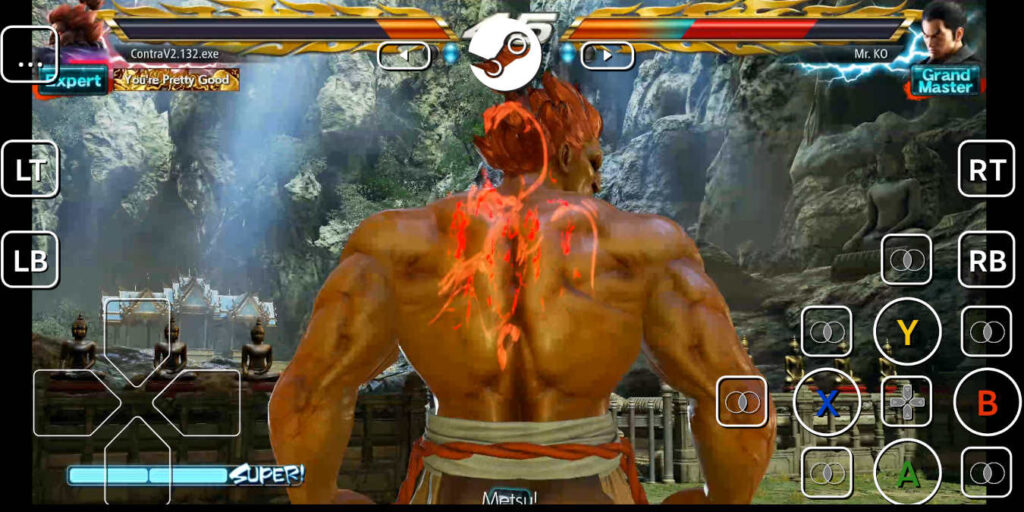
Playing your favorite Steam games on a mobile device has become more accessible and convenient thanks to the Steam Link app. Originally designed as a hardware solution, Steam Link now exists as a versatile app compatible with Android and iOS devices, transforming your phone or tablet into a portable gaming station. This guide walks you through the entire setup process, from preparing your gaming PC to optimizing your network connection, ensuring you get the best possible gaming experience on your mobile device.
To fully enjoy remote gaming via Steam Link, it’s essential to have the right hardware and network setup. Whether you’re looking to discover new career pathways in game development or understand industry revenue standards, exploring these topics can provide valuable insights into the broader gaming ecosystem. For instance, understanding the necessary skills for a career in game creation can be complemented by examining the revenue potential of game development agencies, which often influences industry standards and expectations. Additionally, choosing a reliable development partner, such as a recognized UI/UX game design company in Australia, can significantly impact your project’s success.
What You Need to Use Steam Link Effectively
Before diving into the setup process, ensure you have all the necessary components ready:
- A gaming PC with Steam installed and properly configured.
- The Steam Link app installed on your Android or iOS device. If you’re using the original Steam Link hardware, this guide still applies, but you’ll need to adjust client settings from your PC.
- A high-quality wireless router capable of handling high data throughput.
- For optimal performance, a wired Ethernet connection from your PC to the router can substantially reduce latency and interference. Using an Ethernet cable to connect your client device to the network is also recommended for the best experience.
- A wireless-compatible gamepad, connected via Bluetooth or a compatible cable, to navigate and play games comfortably.
Once you’ve installed the Steam Link app, proceed to configure your host machine’s settings on your gaming PC.
Configuring Your PC for Steam Link
Start by launching “Big Picture Mode” in Steam for an optimized UI experience. You can quickly access this by right-clicking the Steam icon in your taskbar and selecting “Big Picture.”
Within Big Picture Mode, click the Settings gear icon located in the top-right corner. From there, select “Remote Play” to access remote gaming options. Ensure that the “Enable Remote Play” checkbox is active. Next, click on “Advanced Host Options” to fine-tune your streaming performance.
In the Advanced Host Settings, optimize key parameters such as:
- Software encoding threads: Set between 2 to 8 to match your CPU capabilities.
- Hardware encoding: Enable this feature if your GPU supports it, such as Nvidia’s NVENC technology, which can significantly improve streaming quality.
- Use NVFBC capture: If you have an Nvidia GPU, check this option for better capture performance.
- Change desktop resolution to match streaming client: This can enhance streaming smoothness but may alter your desktop layout and affect local gameplay if using features like Steam Remote Play Together.
Note that a router released around 2015 or later is generally recommended for smooth remote streaming. Modern routers with Quality of Service (QoS) features can prioritize gaming traffic, further reducing lag.
Setting Up Steam Link on Your Mobile Device
Open the Steam Link app on your phone and tap the gear icon in the top right corner to access Settings. Here, you can customize various streaming options:
- Video quality: Choose between Fast, Balanced, or Beautiful. For minimal input delay, Fast or Balanced is preferred.
- Audio output: Set to Stereo for most devices, or higher surround options if your setup supports it.
- Microphone: Enable if you want to stream voice chat.
- Input controls: Keep input enabled for gamepad or touchscreen controls.
- Controller overlay: Select the default button layout or customize it based on your preferences.
- Launch mode: Decide whether to start recent games, launch in Big Picture, or open the desktop.
- Bandwidth limit: Use automatic or set a maximum bandwidth, such as 75 MBit/s, depending on your network speed.
- Framerate limit: Set to automatic, or specify 30, 60, 90, or 120 FPS based on your hardware and network stability.
- Resolution limit: For Wi-Fi networks, 480p on 2.4 GHz and 720p on 5 GHz are recommended starting points. Higher resolutions should be tested after benchmarking your connection.
- Performance overlay: Enable icons or details to monitor streaming health during gameplay.
- Hardware decoding: Always enable this unless troubleshooting.
- HEVC Video: Disable this setting unless your device and network support it well, as some hardware performs better without it.
- Allow direct connection: Enable for potentially lower latency.
Benchmarking Your Network Connection
Before adjusting your streaming settings, it’s vital to test your network’s capabilities. In the Steam Link app, go to your computer’s settings by selecting the device from the list and entering your PIN. Then, tap “Network Test” to measure your connection quality.
Results vary depending on your Wi-Fi frequency. For example, a 2.4 GHz connection might handle up to 45 Mbps successfully, while a 5 GHz network can support up to 100 Mbps, providing a more stable gaming experience. For the best results, a wired Ethernet connection from your PC or device is preferable, especially when streaming high-motion or latency-sensitive games like fighting titles or racing simulations.
Final Tips and Recommendations
After completing your network benchmarking, choose your streaming resolution and framerate accordingly. If your connection performs well on 5 GHz Wi-Fi, streaming at 720p or even 1080p at 60 FPS can deliver excellent gameplay. For weaker connections, such as 2.4 GHz Wi-Fi, lowering the resolution to 480p and reducing the framerate to 30 FPS can improve stability.
Achieving optimal streaming conditions may sometimes require exploring different network configurations or hardware upgrades. If you’re interested in developing your own games or understanding industry standards, exploring educational resources on game development can be beneficial — you can find guides on educational paths for a career in game creation. Additionally, the financial landscape of game development agencies varies widely; reviewing industry revenue data can help set realistic expectations for your projects or career. For those seeking professional development services, considering a top-rated UI/UX game development company in Australia can provide valuable expertise.
What resolutions and framerates have you managed to achieve on your devices? Share your experiences and tips in the comments below!