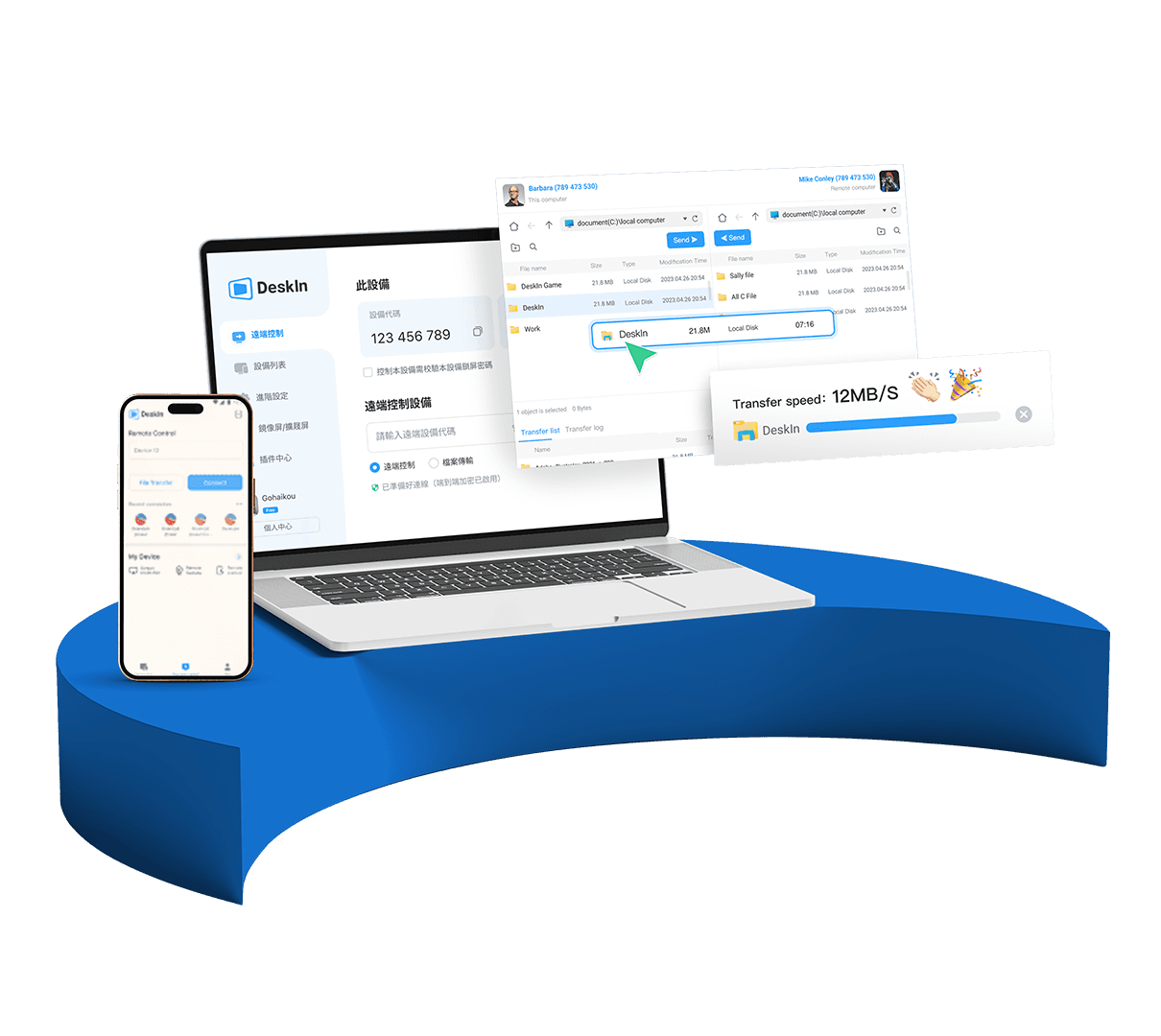
Unlocking the ability to enjoy your favorite PC games on an Android device has become more accessible than ever. Whether you’re relaxing on your couch, commuting, or waiting in line, playing PC games on your mobile phone offers unparalleled flexibility and convenience. This comprehensive guide explores the most effective methods—emulation, game streaming, official ports, and innovative tools like Deskin—to transform your Android into a portable gaming powerhouse. With the right setup, you can enjoy high-quality gameplay with minimal lag, crisp visuals, and seamless controls, all while leveraging the power of your existing PC setup.
What You Need to Know Before You Start
There are several ways to experience PC gaming on Android, each suited to different user needs and technical comfort levels:
- Emulators mimic a PC environment on your Android device, allowing you to run older or low-spec PC games locally. This method gives you the most control but may require tweaks for optimal performance.
- Streaming Apps connect your Android device directly to your PC or cloud gaming service, transmitting gameplay in real time over Wi-Fi or internet. This is generally the easiest approach and offers excellent visuals if your network is stable.
- Native Ports of some PC games are available directly on Android via the Google Play Store, providing instant play without additional hardware or setup, ideal for supported titles.
Because most PC games are designed for systems vastly different from Android’s hardware, direct installation isn’t feasible. However, these workarounds open up a world of gaming possibilities, especially when combined with tools like Deskin, which provides high-performance remote access.
How to Emulate PC Games on Android
Emulation allows your Android device to run PC software by mimicking the operating environment. Popular emulators such as ExaGear, Winlator, or Box64 can help run older or less demanding PC titles locally on your mobile device. Results vary, and some trial-and-error may be necessary to perfect performance.
Setting Up an Emulator
1. Obtain the Emulator: Download a compatible emulator app from trusted sources, such as Winlator on Github, or explore other options like ExaGear.
2. Prepare Your Game Files: Transfer DRM-free or open-source game files to your Android’s Downloads folder.
3. Configure the Emulator: Open the emulator app, create a new environment, and adjust settings—such as CPU, RAM, and graphics—to match your game’s requirements.
4. Launch the Game: Locate the executable file (.exe) within your file manager via the emulator and start playing.
Using emulators is ideal for nostalgic classics or older titles that don’t demand cutting-edge graphics. For example, Winlator supports high compatibility and can be configured for various games, but expect some setup time and potential stability issues.
How to Stream PC Games to Android
Streaming involves running the game on your PC or cloud service and relaying the video feed directly to your Android device. This method offers near-native performance and is perfect for modern, graphics-intensive titles.
Streaming from Your PC
1. Use a Streaming App: Popular options include Steam Link, GeForce Now, Xbox Cloud Gaming, and DeskIn.
2. Set Up Your PC: Install and configure the streaming software on your gaming PC, ensuring it’s connected to the same Wi-Fi network or internet.
3. Connect Your Android Device: Launch the streaming app on your Android device, pair it with your PC, and log into your gaming account.
4. Start Playing: Select your game from the app’s library, fine-tune your controls, and enjoy smooth gameplay.
Advantages and Considerations
- Ease of Use: Streaming is straightforward and supports high-quality visuals.
- Network Dependency: A stable, fast internet connection (preferably Wi-Fi 5GHz or Ethernet) is essential for low latency.
- Controller Support: Connect a Bluetooth controller for an optimal experience.
For example, GeForce Now offers access to a vast library of games via the cloud, while Steam Link allows direct streaming from your own PC.
How to Play PC Ports on Android
Some PC games are natively ported to Android, providing a plug-and-play experience. These are often released simultaneously with the PC version or ported later by developers.
How to Find and Install Ports
1. Search the Play Store: Look for the game title or developer’s official port.
2. Download and Install: Tap Get or Buy to install directly onto your device.
3. Launch and Play: Open the app and enjoy without additional setup.
While limited in number, supported ports include popular titles like Minecraft and some strategy games, making this an effortless way to enjoy PC games on Android if available.
An Underrated Solution: Playing PC Games on Android with Deskin
For gamers seeking full control over their PC games without complex emulators or cloud subscriptions, Deskin offers a powerful remote desktop experience optimized for gaming.
How Deskin Works
- High-Performance Streaming: Supports up to 144fps and 2K resolution, delivering smooth visuals.
- Low Latency: Uses advanced protocols to keep input delay under 40ms, crucial for competitive gameplay.
- Cross-Platform Compatibility: Works seamlessly across Windows, macOS, Android, iOS, and more.
- Gamepad and Mouse Support: Map controls directly from your Android device or external controllers.
- Customizable Interface: Adjust control layouts, enable high-quality visuals, and extend screens for multitasking.
Setting Up Deskin
1. Install on Your PC and Android: Download from official sources and follow setup guides.
2. Log In with the Same Account: Securely connect your devices.
3. Select Your PC: From the device list, establish a connection.
4. Launch Your Game: Start playing with minimal latency and crisp visuals.
This method effectively turns your Android into a portable gaming monitor, giving you the full desktop experience anywhere, without being confined to your desk.
Final Thoughts: Bringing PC Gaming to Your Android
The days of being tethered to a bulky PC or console are fading. With emulators, streaming services, native ports, and Deskin, you can enjoy your favorite PC games anytime, anywhere, with ease and high fidelity. For the best balance of performance, control, and simplicity, Deskin stands out as the most gamer-centric remote access solution, making it an ideal choice for enthusiasts and professionals alike.
Explore these methods, select the one that fits your setup, and transform your Android device into a true gaming companion. Whether through local emulation, cloud streaming, or remote desktop, your gaming universe is now more portable than ever.