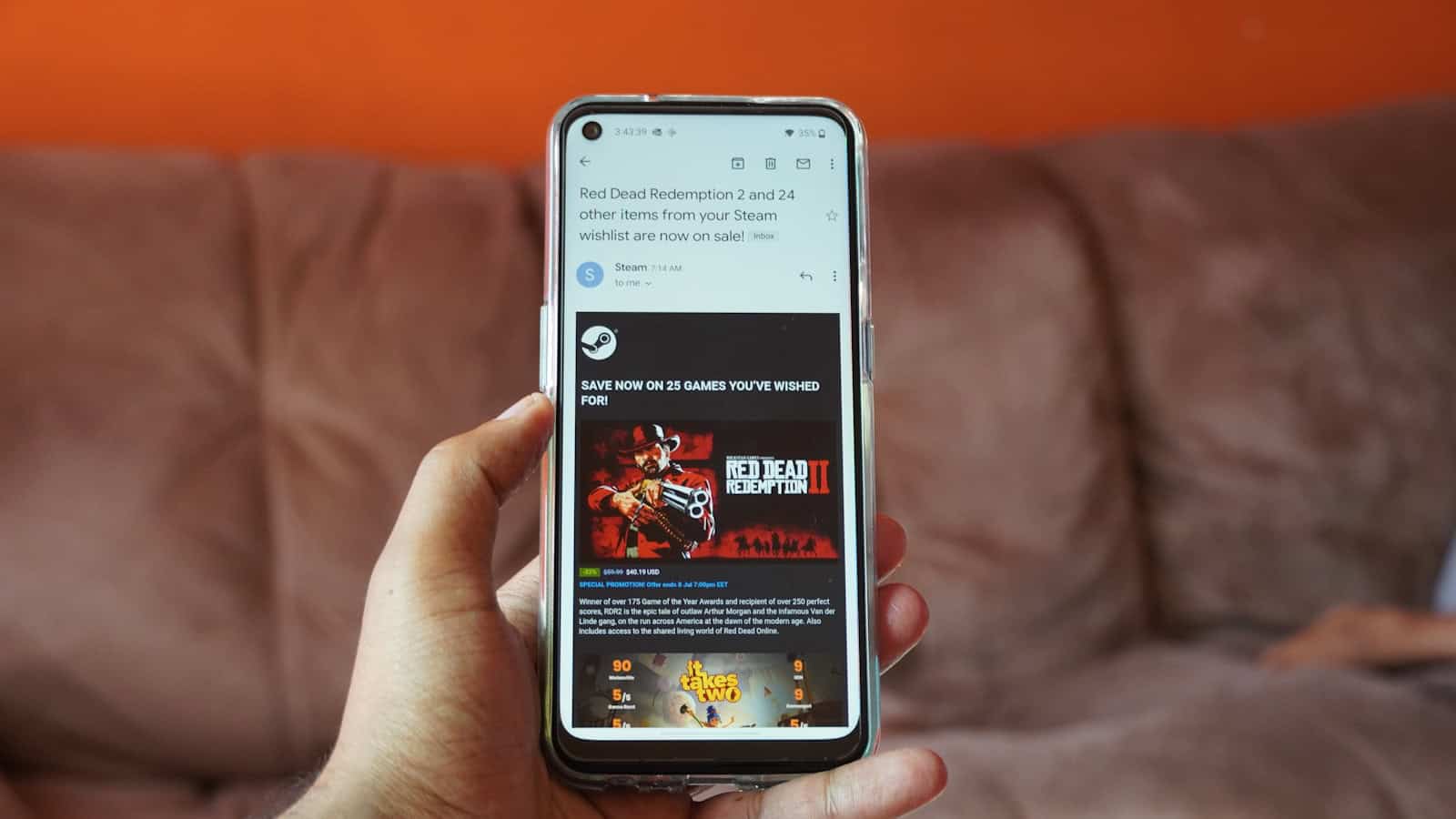
Accessing and playing your favorite Steam titles on your mobile device has become easier than ever, thanks to innovative streaming solutions. Whether you own an iPhone or an Android device, you can now enjoy high-quality gaming experiences without the need for a powerful PC. This comprehensive guide explores the most popular methods to stream Steam games directly to your phone, providing flexible options suited for different setups and preferences. From official apps to cloud gaming services, learn how to turn your mobile device into a portable gaming station and elevate your gaming experience on the go.
—
Remote Play and Cloud Gaming Solutions
Transforming your mobile device into a gaming hub is entirely feasible with the right tools. The most common approaches involve either streaming directly from your PC or leveraging cloud-based gaming platforms. Each method offers distinct advantages and considerations, allowing you to choose the best fit for your setup and gaming style.
1. Steam Link
Steam Link is Valve’s official application designed to deliver your PC’s gaming power straight to your phone. If you already own a gaming PC with Steam installed, this app unlocks the ability to stream your entire library seamlessly. By connecting your device over a local Wi-Fi network, Steam Link transmits the game visuals from your computer to your phone, enabling you to play anywhere within your home. Think of it as a portable console that leverages your existing PC’s hardware.
Here’s how to set it up:
- Download the Steam Link app from the Google Play Store or the Apple App Store.
- Ensure both your PC and mobile device are connected to the same high-speed Wi-Fi network.
- Launch Steam on your computer and open the Steam Link app on your phone.
- The app will scan for your PC; select it and follow the pairing instructions.
- Enter the displayed PIN on your PC if prompted.
- Adjust streaming settings like resolution and bandwidth for optimal performance.
Advantages:
- Free to use
- Straightforward setup process
- Supports a wide range of games and controllers
Limitations:
- Requires a gaming-capable PC running Steam
- Dependent on a robust Wi-Fi connection for smooth gameplay
For detailed instructions and troubleshooting, visit the official Steam Link page: Steam Link.
2. Cloud Gaming Platforms
Cloud gaming services revolutionize mobile gaming by offloading processing to remote servers, eliminating the need for a powerful local machine. These platforms stream gameplay directly to your phone, allowing you to access a vast library of titles, including many from your Steam collection. Popular options like GeForce Now and Xbox Cloud Gaming are perfect for players seeking high-quality gaming on mobile devices without the constraints of local hardware.
Key features of cloud gaming services include:
- Access to high-end games without a gaming PC
- Compatibility with various controllers for a better experience
- Support across multiple devices, including phones, tablets, and smart TVs
Noteworthy services:
- NVIDIA GeForce Now offers a free tier with optional paid upgrades for increased performance and session length. You can link your Steam library to access compatible titles. Learn more about integrating cloud gaming with your setup: nvidia.com.
- Xbox Cloud Gaming, included with Xbox Game Pass Ultimate, provides a broad selection of Xbox titles playable on mobile devices. Check the current game catalog and subscription details on the official site.
Pros:
- No need for a dedicated gaming PC
- Play demanding titles with high-quality graphics
- Portable gaming on any compatible device
Cons:
- Subscription fees are typically required
- A fast, stable internet connection is essential to reduce lag
3. Third-Party Remote Play Apps
Beyond Steam Link, several third-party applications offer alternative remote streaming solutions, often with additional features or optimized performance. Notable options include:
- Moonlight: An open-source app targeting NVIDIA GPU users, focusing on high performance and low latency.
- Parsec: Designed for low-latency streaming with support for multiplayer and co-op gameplay.
Success with these apps depends heavily on having a strong internet connection and compatible hardware. They are excellent alternatives if you’re seeking customization or specific features not available in official apps.
—
Points to Remember
- Internet Connection is Crucial: For smooth gameplay, both cloud services and streaming apps demand a stable, high-speed connection—preferably on a 5GHz Wi-Fi network.
- Controller Compatibility: Connecting a Bluetooth controller enhances gameplay, especially for action-packed or precision-demanding titles.
- Game Selection Limitations: Not all Steam games are optimized for mobile streaming or cloud platforms. Check game compatibility beforehand.
- Subscription and Cost Considerations: Many cloud gaming services operate on a subscription basis, so consider your budget when choosing a platform.
With these options, the line between PC and mobile gaming continues to blur. Now, you can carry your entire Steam library in your pocket and enjoy gaming wherever you are. To further streamline your game development projects, you might explore mobile app creation, which can help you develop your own gaming platform or app.
—
Key Takeaways
- The Steam Link app provides a reliable way to stream your desktop games to your phone.
- A robust Wi-Fi connection paired with a compatible controller significantly improves gameplay.
- Cloud gaming services expand your gaming options beyond your local setup, enabling access to high-end titles remotely.
—
Setting Up Your Devices
Getting started requires installing the appropriate app and establishing a stable connection to your computer. This process enables seamless streaming from your PC to your mobile device, transforming your phone into a portable gaming console.
Installing the Steam Link App
For Android users, download the app from the Google Play Store. iOS users can find it on the App Store. The Steam Link application is free and offers a straightforward interface for connecting to your PC.
Connecting to Your Computer
Ensure both your phone and PC are connected to the same high-speed Wi-Fi network. Launch Steam on your computer and open the Steam Link app on your phone. The app will detect your PC automatically; select it to initiate pairing. You may need to enter a PIN or confirm the connection on your PC. For optimal performance, close unnecessary background applications and keep your network free from interference.
Configuring Streaming Settings
Once connected, you can customize streaming parameters such as resolution and bandwidth to match your network speed. Access the advanced options within the Steam Link app’s settings to fine-tune the experience. Adjusting these settings can reduce lag and improve visual quality, making gameplay smoother and more enjoyable.
—
Gameplay Experience
Playing Steam titles on a mobile device involves considerations around control schemes, network stability, and game compatibility. Proper setup ensures a smooth and immersive gaming session.
Controller and Touchscreen Options
You can navigate your games either through on-screen touch controls or by pairing a Bluetooth controller. For titles requiring precise inputs—like first-person shooters or complex strategy games—using a dedicated controller offers better accuracy. Popular options include Xbox, PlayStation, or third-party Bluetooth controllers. Pairing them is simple:
- Enable Bluetooth on your phone
- Power on your controller and put it in pairing mode
- Select the controller from your device’s Bluetooth menu
Optimizing Your Network for Streaming
A fast, reliable internet connection is essential. Use a 5GHz Wi-Fi network for the best results, as it offers less interference and higher speeds. Position your router close to your gaming area and minimize other bandwidth-heavy activities during gameplay. Streaming services like Steam’s Big Picture Mode can help optimize network settings, prioritizing game data for reduced lag.
Exploring Game Types and Play Modes
While single-player games typically perform well over streaming, multiplayer titles require especially stable connections for real-time interactions. Many games support cross-platform play, allowing you to enjoy multiplayer sessions with friends on different devices. Features like Remote Play Together enable local co-op games to be played remotely, further expanding your gaming options.
—
Frequently Asked Questions
What do I need to play Steam games on my phone without a PC?
A reliable internet connection and a compatible cloud gaming or streaming platform are essential. Your device should also meet the system requirements for the app or service used.
Can I play Steam games on Android without a desktop PC?
Yes, by utilizing cloud gaming solutions, you can stream Steam titles directly to your Android device without a local PC.
Is it possible to play Steam games on an iOS device without a PC?
Absolutely. Cloud gaming platforms support iOS devices, enabling game streaming without the need for a personal computer.
Which apps are best for streaming Steam games on mobile devices?
Official options like Steam Link and third-party apps such as Moonlight and Parsec provide robust streaming capabilities.
How can I access my Steam library while away from home?
Using cloud gaming services or the Steam Link app allows you to stream your library over an internet connection from anywhere.
Can I play Steam games on a TV via my phone without a PC?
Yes. Many smart TVs and media players support screen mirroring or streaming apps, enabling you to enjoy your games on a larger screen directly from your mobile device.
By leveraging these tools and techniques, gaming on the go becomes more accessible and enjoyable. For developers interested in creating gaming applications or expanding their reach, exploring game app development can provide valuable insights and resources.