


Experiencing sluggish download times on Steam can be frustrating, especially when you’re eager to jump into a new game. Fortunately, there are several effective methods to enhance your download performance. By optimizing your network settings, managing background applications, and tweaking Steam’s preferences, you can significantly reduce download times and get back to gaming faster.
Start by performing some basic network housekeeping. Closing unnecessary programs that consume bandwidth—like browsers, streaming apps, or chat services—can free up resources for Steam. Open Task Manager with Ctrl+Shift+Esc, navigate to the “Network” tab, and end tasks that are not essential. This simple step prevents bandwidth hogging and ensures Steam has the maximum available for downloads.
Switching from WiFi to a wired Ethernet connection can dramatically improve download speeds. Ethernet provides a more stable and faster connection compared to wireless networks, especially if your WiFi signal is weak or congested. If feasible, connect your PC directly to your router or modem using an Ethernet cable. This wired setup minimizes interruptions and latency, ensuring smoother downloads.
Prioritizing Steam within your system can boost download performance. Access Task Manager, locate Steam or SteamService.exe, right-click, and set their priority to “High.” This adjustment allocates more system resources to Steam, allowing it to download files more efficiently. Additionally, in Steam’s settings, disable any download speed limits by navigating to Settings > Downloads and toggling off the “Limit download speeds” option. For even better results, select a server region closer to your location, which can be done in the same menu.
Sometimes, Steam’s own cache can become corrupted or bloated, slowing down downloads. Clearing the download cache is straightforward: go to Steam > Settings > Downloads and click “Clear Download Cache.” Keep in mind that doing this will restart Steam, so save any ongoing work. After clearing the cache, restart Steam and check if your download speeds have improved.
Choosing the optimal download server location can make a noticeable difference. In Steam’s settings under Downloads, select the “Download Region” dropdown and pick the nearest server. If your current region is experiencing high traffic or issues, try selecting a slightly farther server to see if speeds increase. Alternatively, you might experiment with different regions to find the most consistent connection.
Your Windows settings can also influence download speeds. Disable your network’s metered connection to prevent Windows from throttling bandwidth. Access Settings > Network & Internet > WiFi, select your network, and toggle off “Metered connection.” If you’re using a VPN, consider turning it off temporarily, as VPNs can introduce latency and reduce speeds. For more advanced network tweaks, visit the benefits of cross-platform mobile solutions for insights into optimizing connectivity.
Antivirus software and firewalls may interfere with Steam’s connection. Temporarily disable Windows Defender or your third-party antivirus, or whitelist Steam in your firewall settings. Remember to re-enable security features after your download completes to stay protected.
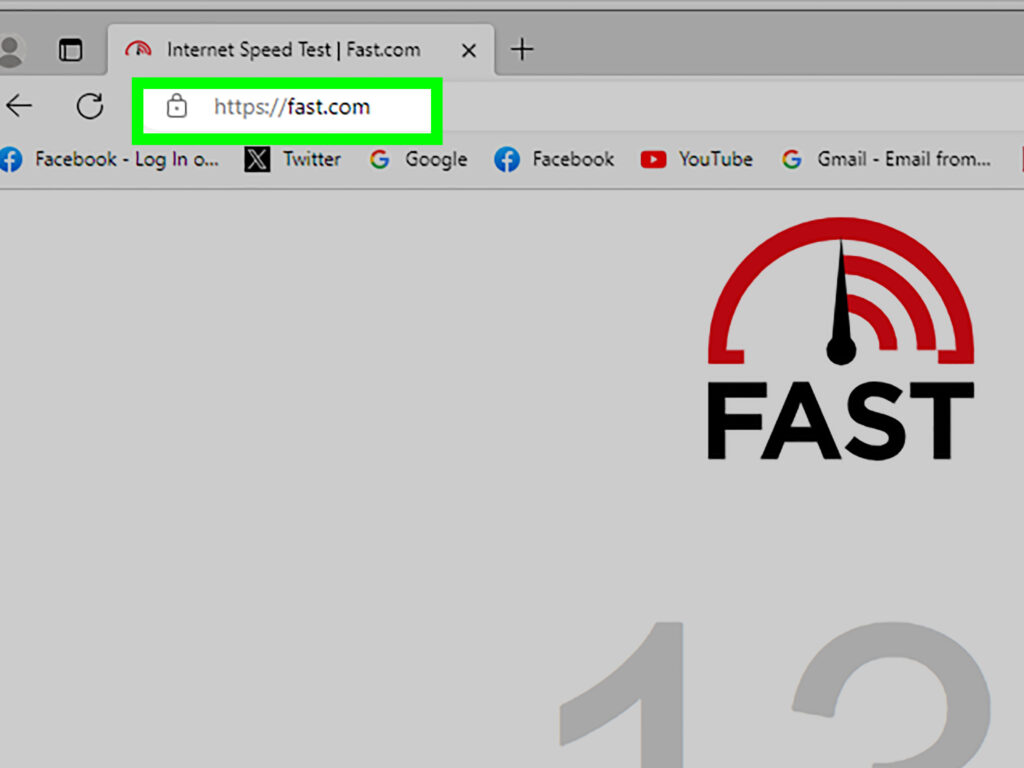
Monitoring your internet speed can help diagnose issues. Use online tools like Fast.com or Google’s built-in speed test to verify your current download bandwidth. If your speeds are consistently low, contact your internet provider or restart your modem/router. Note that if your network is performing well but Steam still downloads slowly, the problem might be on Steam’s end or related to server load. For specialized game development needs, some developers turn to game studios focusing on play-to-earn titles, which often have optimized download infrastructure.
By applying these strategies, you can enhance your Steam download speeds and reduce wait times. Remember to re-enable any security or network settings you disable for testing purposes. With patience and the right adjustments, you’ll be gaming in no time.